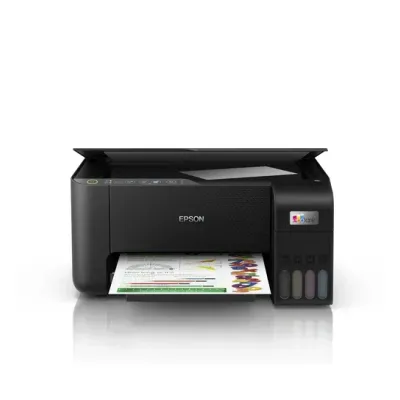
EPSON L3060 manual
¿Te sirvió?
Texto de la página 111
User's Guide
Solving Problems
❏ Lower the quality setting. High quality printing slows down the printing speed.
❏ Enable the bidirectional (or high speed) setting. When this setting is enabled, the print head prints while
moving in both directions, and the printing speed increases.
❏ Windows
Select High Speed on the printer driver's More Options tab.
❏ Mac OS
menu > Printers & Scanners (or Print & Scan, Print & Fax), and
Select System Preferences from the
then select the printer. Click Options & Supplies > Options (or Driver). Select On as the High Speed
Printing setting.
❏ Disable Quiet Mode.
❏ Windows
Disable the Quiet Mode setting on the printer driver's Main tab.
❏ Mac OS
menu > Printers & Scanners (or Print & Scan, Print & Fax), and
Select System Preferences from the
then select the printer. Click Options & Supplies > Options (or Driver). Select Off as the Quiet Mode
setting.
Printing Slows Down Dramatically During Continuous Printing
Printing slows down to prevent the printer mechanism from overheating and being damaged. However, you can
continue printing. To return to normal printing speed, leave the printer idle for at least 30 minutes. Printing speed
does not return to normal if the power is off.
Cannot Start Scanning
❏ Connect the USB cable securely to the printer and the computer. If you are using a USB hub, try to connect the
printer directly to the computer.
❏ If you scan at a high resolution over a network, a communication error may occur. Lower the resolution.
❏ Make sure that the correct printer (scanner) is selected on Epson Scan 2.
Check whether or not the printer is recognized when using Windows
In Windows, make sure the printer (scanner) is displayed in Scanner and Camera. The printer (scanner) should be
displayed as "EPSON XXXXX (printer name)". If the printer (scanner) is not displayed, uninstall and then reinstall Epson Scan 2. See the following to access Scanner and Camera.
❏ Windows 10
Right-click the start button or press and hold it, select Control Panel, enter "Scanner and Camera" in the search
charm, click View scanners and cameras, and then check if the printer is displayed.
❏ Windows 8.1/Windows 8
Select Desktop > Settings > Control Panel, enter "Scanner and Camera" in the search charm, click Show
Scanner and Camera, and then check if the printer is displayed.
111
¿Necesitas ayuda?
¿Tienes una duda sobre el EPSON L3060 que el manual no resuelve? Pregunta a otros propietarios.
0 preguntas
Preguntas frecuentes sobre el EPSON L3060
¿El manual del EPSON L3060 está disponible en inglés?
Sí, el manual del EPSON L3060 está disponible en inglés.
¿Cuántas páginas tiene el manual del EPSON L3060?
El manual del EPSON L3060 tiene 127 páginas y el PDF ocupa 3.2 MB. Puedes consultarlo gratis en esta página.