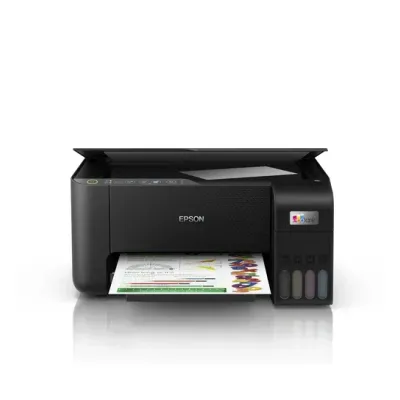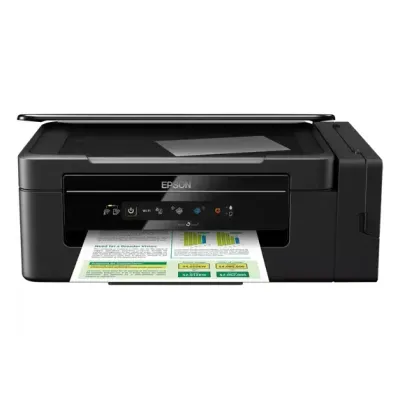
EPSON L3060 manual
¿Te sirvió?
Texto de la página 94
User's Guide
Solving Problems
Light
Situation
Solutions
The printer has started in recovery mode
because the firmware update failed.
Follow the steps below to try to update the firmware
again.
1. Connect the computer and the printer with a USB
cable. (During recovery mode, you cannot update the
firmware over a network connection.)
2. Visit your local Epson website for further
instructions.
* In some print cycles a very small amount of surplus ink may be collected in the ink pad. To prevent ink leakage
from the pad, the printer is designed to stop printing when the pad has reached its limit. Whether and how often
this is required will vary according to the number of pages you print, the type of material that you print and the
number of cleaning cycles that the printer performs. The need for replacement of the pad does not mean that your
printer has ceased to operate in accordance with its specifications. The printer will advise you when the pad
requires replacing and this can only be performed by an authorised Epson Service provider. The Epson warranty
does not cover the cost of this replacement.
Related Information
& “Contacting Epson Support” on page 126
& “Installing Applications” on page 92
& “Updating Applications and Firmware” on page 92
Checking the Printer Status - Windows
1.
Access the printer driver window.
2.
Click EPSON Status Monitor 3 on the Maintenance tab.
Note:
❏ You can also check the printer status by double-clicking the printer icon on the taskbar. If the printer icon is not
added to the taskbar, click Monitoring Preferences on the Maintenance tab, and then select Register the shortcut
icon to the taskbar.
❏ If EPSON Status Monitor 3 is disabled, click Extended Settings on the Maintenance tab, and then select Enable
EPSON Status Monitor 3.
Related Information
& “Windows Printer Driver” on page 82
Checking the Printer Status - Mac OS
1.
Select System Preferences from the
then select the printer.
menu > Printers & Scanners (or Print & Scan, Print & Fax), and
2.
Click Options & Supplies > Utility > Open Printer Utility.
3.
Click EPSON Status Monitor.
You can check the printer status, ink levels, and error status.
94
¿Necesitas ayuda?
¿Tienes una duda sobre el EPSON L3060 que el manual no resuelve? Pregunta a otros propietarios.
0 preguntas
Preguntas frecuentes sobre el EPSON L3060
¿El manual del EPSON L3060 está disponible en inglés?
Sí, el manual del EPSON L3060 está disponible en inglés.
¿Cuántas páginas tiene el manual del EPSON L3060?
El manual del EPSON L3060 tiene 127 páginas y el PDF ocupa 3.2 MB. Puedes consultarlo gratis en esta página.