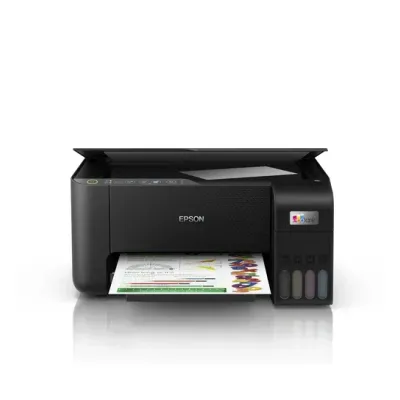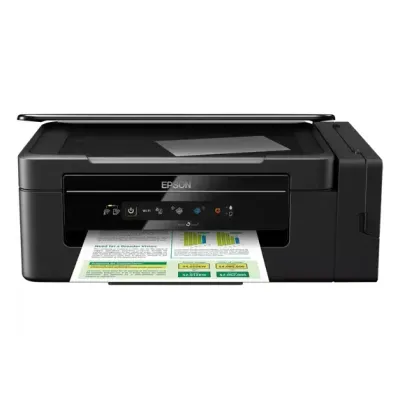
EPSON L3060 manual
¿Te sirvió?
Texto de la página 108
User's Guide
Solving Problems
Printed Photos are Sticky
You may be printing on the wrong side of the photo paper. Make sure you are printing on the printable side.
When printing on the wrong side of the photo paper, you need to clean the paper path.
Related Information
& “Cleaning the Paper Path for Ink Smears” on page 76
Images or Photos are Printed in Unexpected Colors
When printing from the Windows printer driver, the Epson auto photo adjustment setting is applied by default
depending on the paper type. Try change the setting.
On the More Options tab, select Custom in Color Correction, and then click Advanced. Change the Scene
Correction setting from Auto Correct to any other option. If changing the setting does not work, use any color
correction method other than PhotoEnhance in Color Management.
Related Information
& “Adjusting the Print Color” on page 54
Colors Differ from What You See on the Display
❏ Display devices such as computer screens have their own display properties. If the display is unbalanced, the
image are not displayed with proper brightness and colors. Adjust the properties of the device.
❏ Light shining into the display has an effect on how the image is seen on the display. Avoid direct sunlight and
confirm the image where an appropriate illuminance is assured.
❏ Colors may differ from what you see on smart devices such as smart phones or tablets with high-resolution
displays.
❏ Colors on a display are not quite identical to those on paper because the display device and the printer have a
different process of producing colors.
Cannot Print Without Margins
Make borderless setting in the print settings. If you select a paper type that does not support borderless printing,
you cannot select Borderless. Select a paper type that supports borderless printing.
Edges of the Image are Cropped During Borderless Printing
During borderless printing, the image is slightly enlarged and the protruding area is cropped. Select a smaller
enlargement setting.
❏ Windows
Click Settings next to the Borderless checkbox on the printer driver's Main tab, and then change the settings.
❏ Mac OS
Change the Expansion setting from the print dialog's Print Settings menu.
108
¿Necesitas ayuda?
¿Tienes una duda sobre el EPSON L3060 que el manual no resuelve? Pregunta a otros propietarios.
0 preguntas
Preguntas frecuentes sobre el EPSON L3060
¿El manual del EPSON L3060 está disponible en inglés?
Sí, el manual del EPSON L3060 está disponible en inglés.
¿Cuántas páginas tiene el manual del EPSON L3060?
El manual del EPSON L3060 tiene 127 páginas y el PDF ocupa 3.2 MB. Puedes consultarlo gratis en esta página.